
Searching for an Ontology Term using an Ontology Browser
A step-by-step guide to finding a standardized ontology term using an ontology browser, from keyword search to recording the term ID.
Ontology browsers are specialized software tools designed to navigate, visualize, and query ontologies. Examples of some common ontology browsers include Ontology Lookup Service (OLS), BioPortal, and Ontobee.
Video walkthrough
Let’s say you are looking to use a standardized term for the zebrafish jaws.
Go to the Ontology Lookup Service (OLS) website https://www.ebi.ac.uk/ols4
Search keywords
Use targeted keywords to locate matching terms (Figure 1)
- Example: zebrafish jaws
Note 1: Include the organism in your search to narrow results to the correct species-specific ontology.
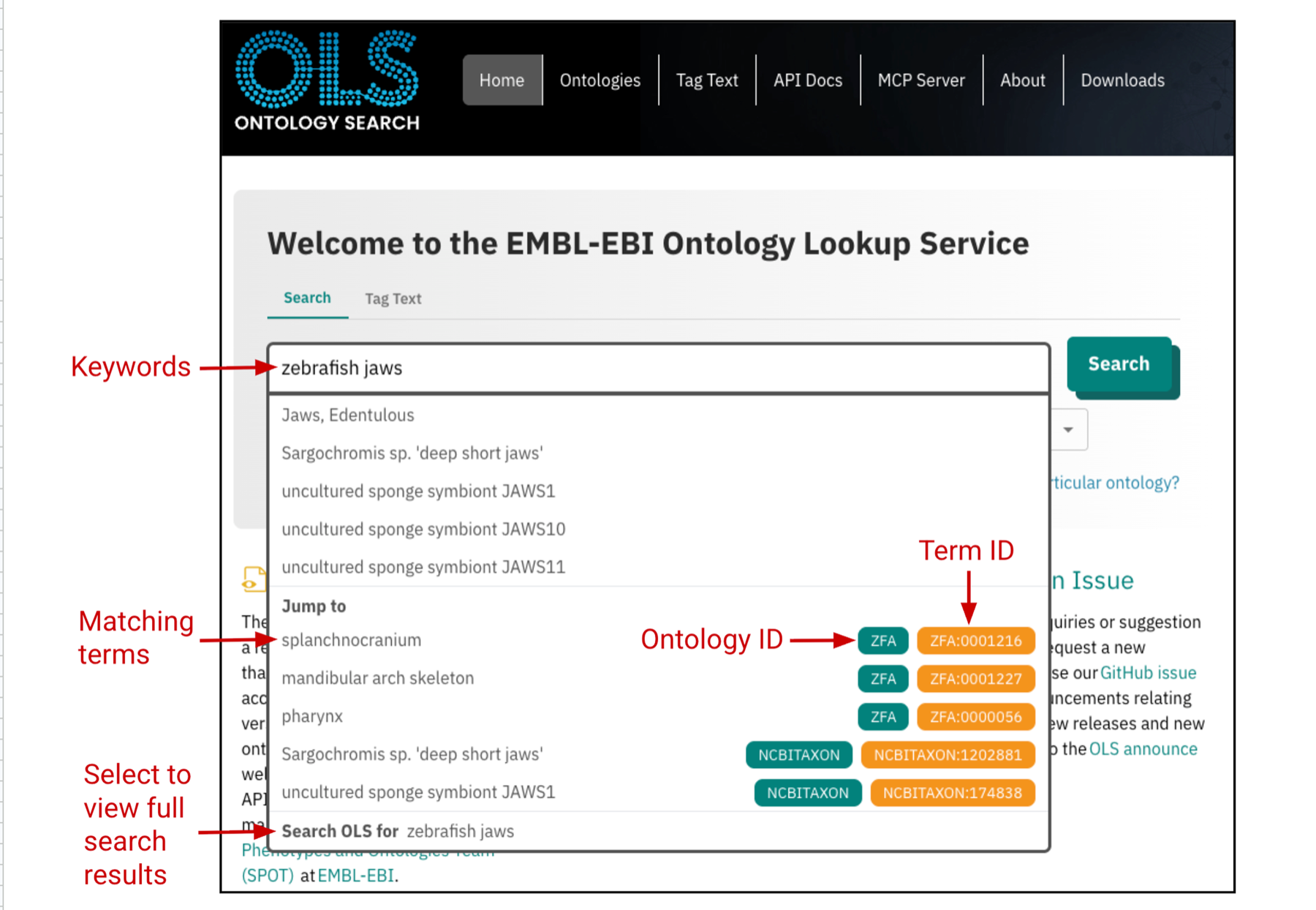
Figure 1. The OLS landing page showing a keyword search using “zebrafish jaws” as an example, along with a preview of search results.
Review preview
The preview of search results shows no exact match for “jaws” in ZFA (Zebrafish Anatomy Ontology) but returns three related terms with identifiers (ID):
- Splanchnocranium (ZFA:0001216)
- Mandibular arch skeleton (ZFA:0001227)
- Pharynx (ZFA:0000056)
Note 2: The prefix of an ID indicates a specific ontology
Compare definitions
Select a term from the preview or use “Search OLS for” to get to the full search results to review all candidates and compare their definitions before selecting one (Figure 2).
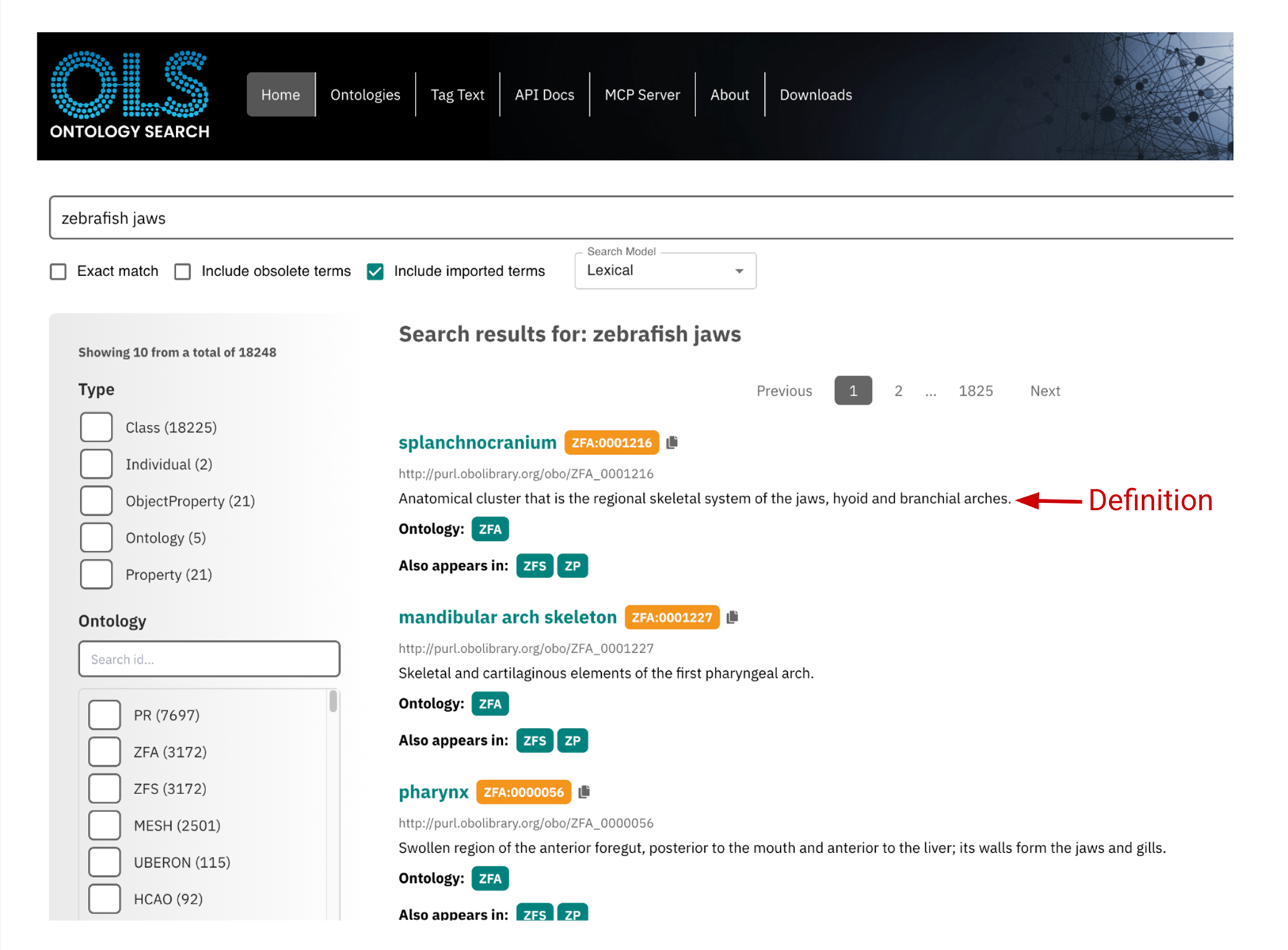
Figure 2. Search results showing matching terms, including the term ID, definition and associated ontologies.
Open term page
Click the term that best matches your concept (based on the definition), for example “mandibular arch skeleton” (ZFA:0001227), to access the term page for more information (Figure 3).
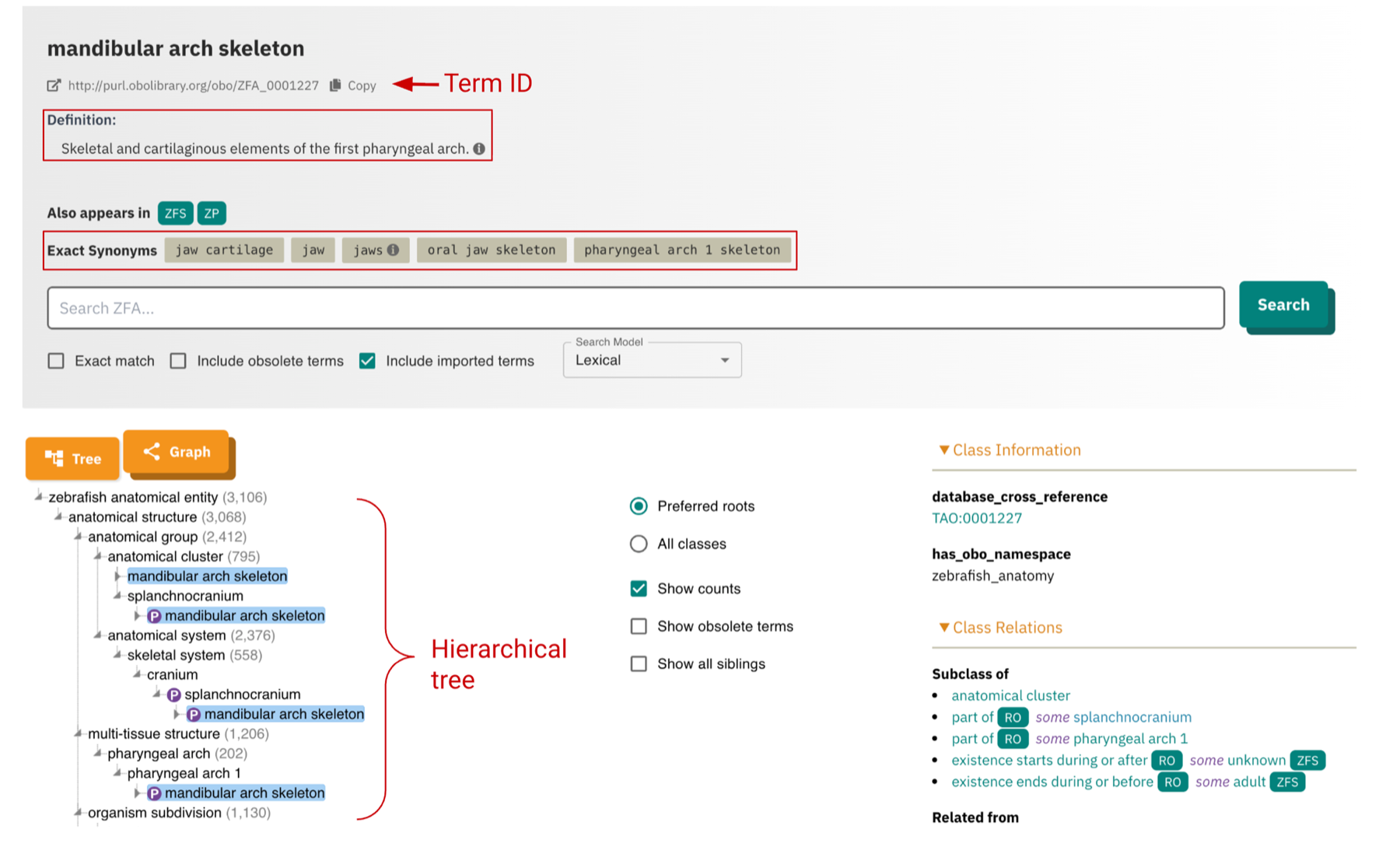
Figure 3. Term page showing details of a term, including the definition, exact synonyms, and hierarchical tree.
Explore term page
In the term page (Figure 3), you can:
- Review definition to ensure the term accurately reflects the intended concept.
- Review synonyms
- Exact synonyms are alternative names that represent the same concept. Synonyms improve term search and retrieval.
Note 3: “jaw” and “jaws” are listed as exact synonyms to “mandibular arch skeleton”.
- Explore hierarchy (Figure 4)
- Parent terms represent broader concepts.
- E.g. “splanchnocranium”, which sits higher in the hierarchy, is a parent term to “mandibular arch skeleton”
- “splanchnocranium” represents a more general concept, which is a regional skeletal system of the jaws, hyoid and branchial arches.
- E.g. “splanchnocranium”, which sits higher in the hierarchy, is a parent term to “mandibular arch skeleton”
- Child terms represent more specific concepts.
- E.g. “palatoquadrate arch” and “ventral mandibular arch” are child terms under “mandibular arch skeleton” because both terms are part of “mandibular arch skeleton”
- “palatoquadrate arch” = upper jaw
- “ventral mandibular arch” = lower jaw
- E.g. “palatoquadrate arch” and “ventral mandibular arch” are child terms under “mandibular arch skeleton” because both terms are part of “mandibular arch skeleton”
- Parent terms represent broader concepts.
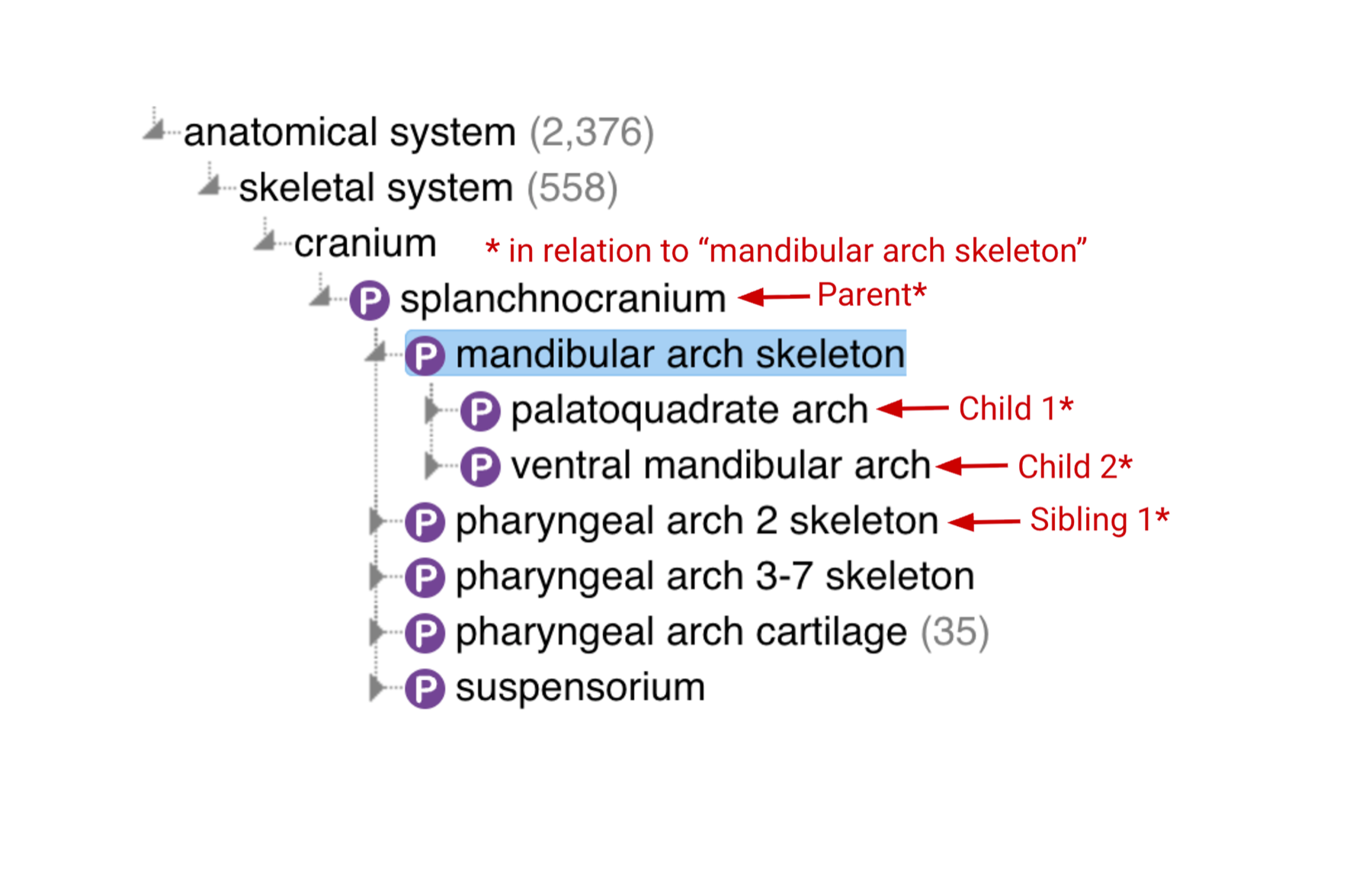
Figure 4. Hierarchy showing the relationships between parent terms, child terms, and sibling terms.
- Examine relationships (Figure 4) by looking for connections such as:
- is_a (classification)
- E.g. cranium is_a skeletal system
- part_of (structural relation)
- E.g. mandibular arch skeleton part_of splanchnocranium, which is also part_of cranium
- is_a (classification)
Note 4: The definition of “mandibular arch skeleton” and having “jaws” as an exact synonym show that “jaws” and “mandibular arch skeleton” represent the same concept, therefore, they are interchangeable.
Note 5: While selecting the most specific term is crucial, you may annotate to a broader parent term if the child term is unknown or too specific. This ensures that the data remains correctly categorized, although with less precision.
Record the ID
Record the ID (e.g., ZFA:0001227) and include it at the point of data generation (e.g., describing anatomical structure) and also in publication.
Note 6: Free-text descriptions should be minimized, especially during data generation, as early-stage inconsistency directly limits downstream integration and comparative analysis.
Note 7: Ontology terms and their IDs can be reported in the main text of a manuscript or in a supplementary table.
Contact maintainers
If you cannot find an ID for your term of interest, or if you identify something that requires changes, do not hesitate to contact ontology maintainers. Most ontologies hosted through OLS use GitHub issue trackers for community feedback.
Issue tracker
Click on the ontology ID (at the top of the term page) to go to the ontology page. Clicking “Issue Tracker” on the ontology page will direct you to the corresponding GitHub repository (Figure 5).
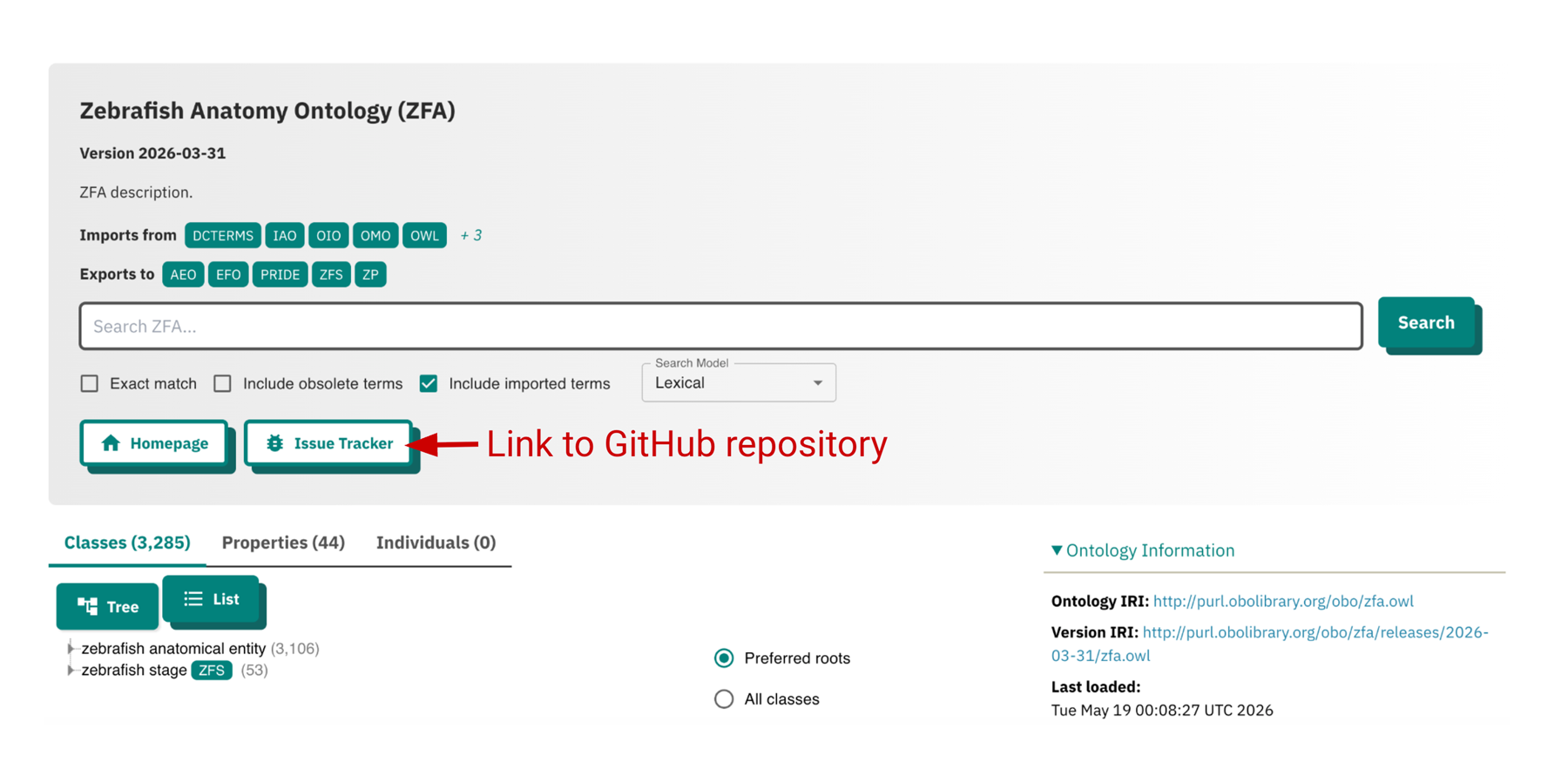
Figure 5. The “Issue Tracker” link on the ontology page directs users to the ZFA GitHub repository.
Note 8: If you are new to GitHub, learn more about navigating GitHub here.
How to Search for an Ontology
If you are interested in exploring other ontologies,
- In OLS, the list of ontologies can also be found under the Ontologies tab.
- Ontologies can be located using filters or keywords under “Ontology”, “ID” or “Description” (Figure 6).
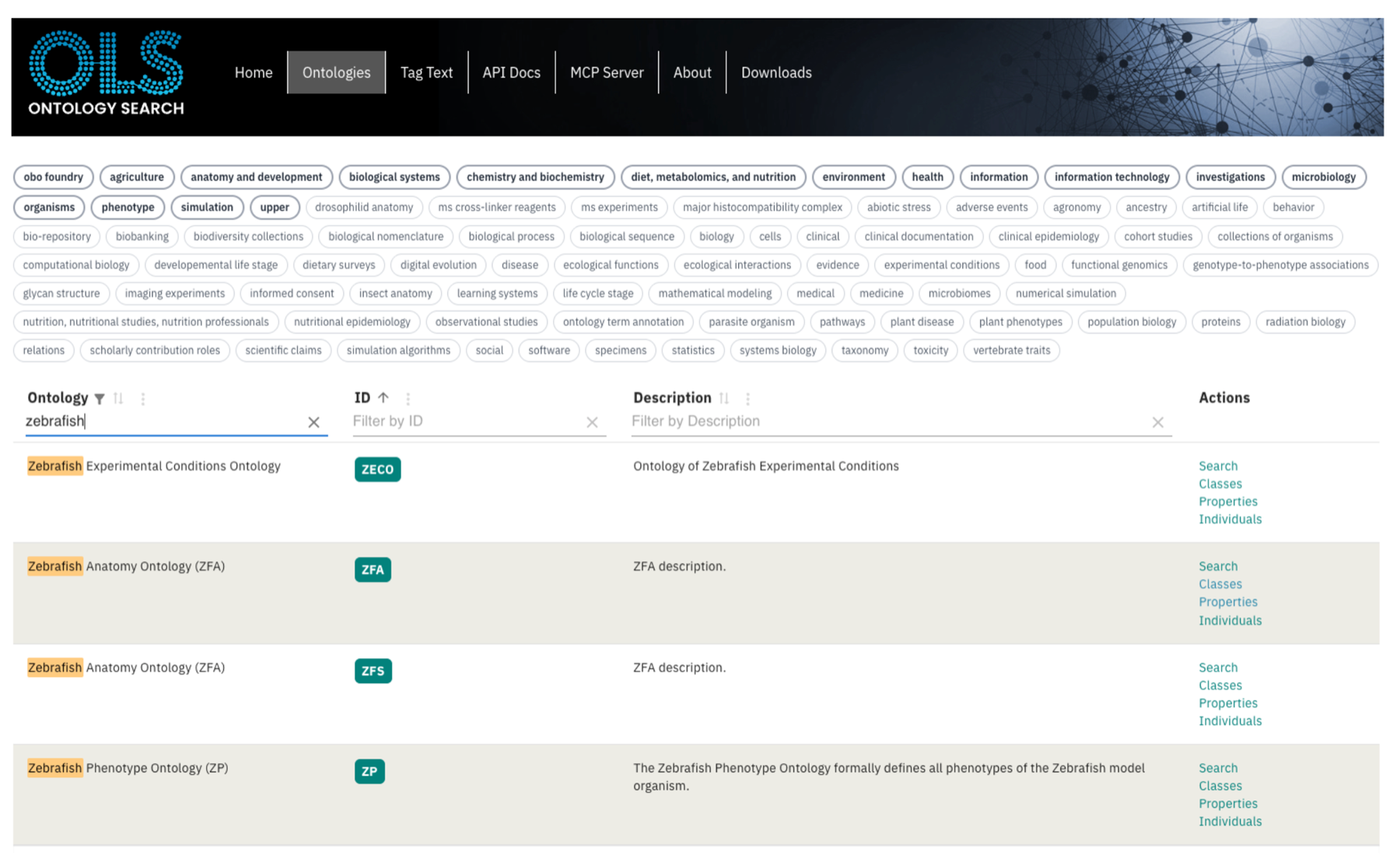
Figure 6. The Ontology tab lists available ontologies. Users can identify specific ontologies by searching with keywords or applying filters within the interface.
- Clicking one of the filtered results will direct you to that ontology.